Project 2
Fun with Filters and Frequencies
Fun with Filters
What is a filter? Google says:
A filter is a device, material, or program that removes unwanted parts or elements from a substance, signal, or data set while letting the desired parts pass through
In this part of the project I remove “unwanted parts” from images. A natural question is, “what can we easily remove from an image?” You could, of course, crop out some parts of the image and call that a filter. It is, but it is a boring one.
Let’s try to extract the edges from an image. In order to do this, we must discuss something called “convolution,” a word which derives not from “convolute” but “convolve.” I think of convolution as a sort of spatial “mixing” of the original image according to some rule. Consider the following rule: the pixel in position $(x, y)$ in the new image comes from position $(x-1, y)$ in the old image. We can conveniently describe this modification with a filter:
\[\begin{bmatrix} \color{blue}{0} & 0 & 0 \\ \color{green}{1} & \color{red}{0} & 0 \\ 0 & 0 & 0 \end{bmatrix}\]A filter essentially “stamps” several scaled and shifted copies of the original image, and then adds them all up. In this case, the result is a single copy of the original image shifted leftward by $1$ pixel, since the only non-zero entry (in green) stamps out a copy shifted leftward relative to the filter’s center. To further develop your understanding, consider the following tweaks:
- If the green entry was $\neq 1$, the stamped copy would also scale the pixel intensities. If it were, say, $0.5$, we would get a left-shifted and dimmed copy of the original image.
- If instead the entry in red was $1$, and the other entries were $0$, the filter would do absolutely nothing.
- If both the red and green entries were $1$, we would get the sum of the original image and a left-shifted copy. This would effectively “blur” the image in the horizontal direction.
- What would be the effect of setting only the blue pixel to be non-zero?
Consider now the “box filter” below:
\[\begin{bmatrix} \frac{1}{9} & \frac{1}{9} & \frac{1}{9} \\ \frac{1}{9} & \frac{1}{9} & \frac{1}{9} \\ \frac{1}{9} & \frac{1}{9} & \frac{1}{9} \end{bmatrix}\]This will add nine copies of the original image, each shifted by 1 pixel in a different direction and scaled to be $1 / 9$ as bright. I interpret this filter as something which “spreads out” the energy formerly concentrated in just one pixel. Suppose the original image had a single bright pixel at $(x, y)$; the filter spreads this energy to all its neighbors, so that the resulting image has $9$ dimmer pixels instead. Thus, this filter1 results in a blur:
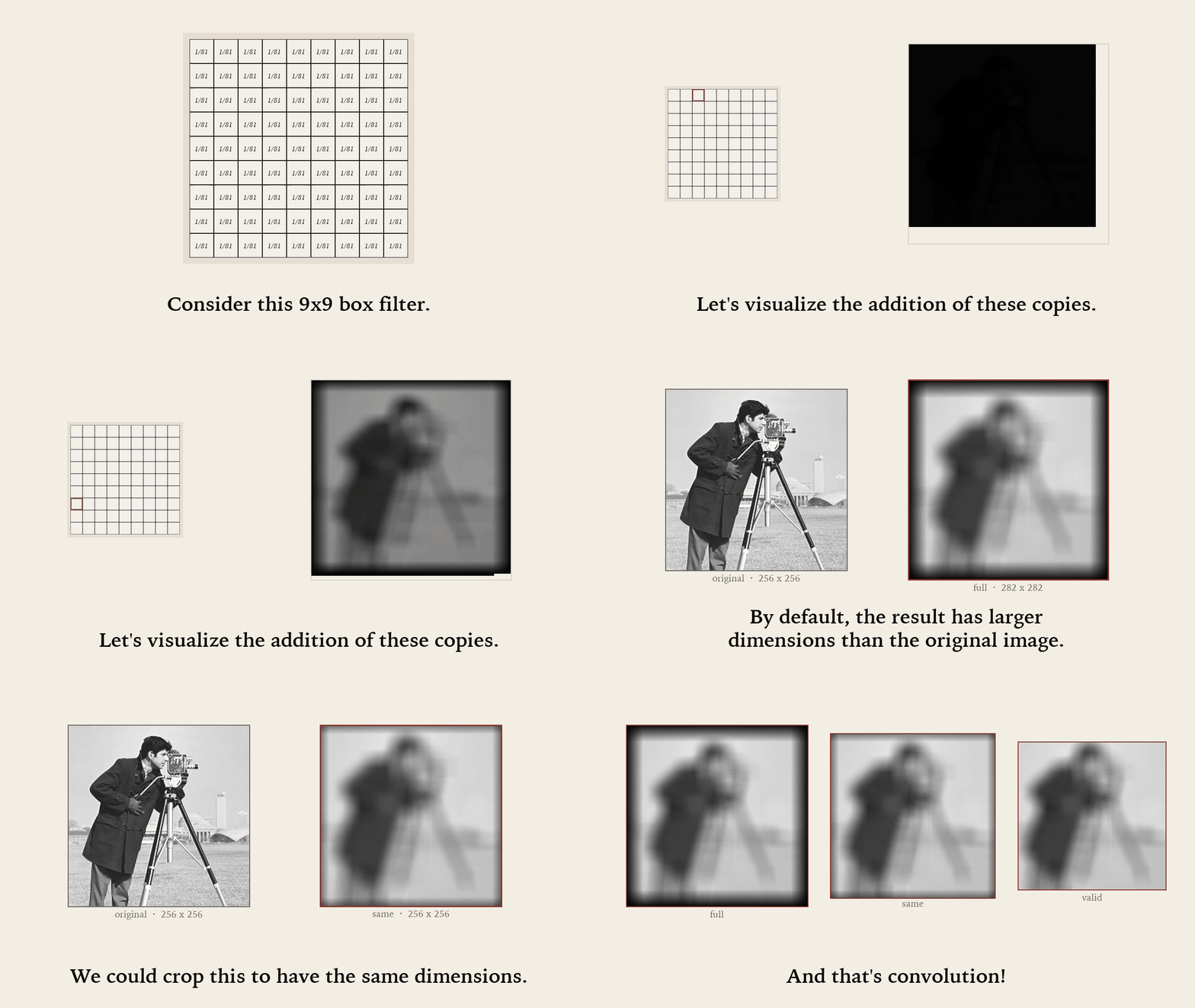
Note that we had to deal with some edge cases, in our dealing with the edges. Hence we define three ‘modes’ of discrete convolution:
- full keeps all of the stamped entries, even those which contain information from only one copy.
- same truncates some entries so that the result keeps the original image’s dimensions.
- valid keeps only the entries that are made from all of the stamped copies.
That’s a visual and intuitive explanation of convolution. I hope it was not too convoluted! It turns out there there is a mathemical equation to model the adding-up of scaled and shifted copies of an image according to a filter. Here is the first part of some code that computes this, in case you are grading me:
def homemade_conv2D(s, f, mode):
    # ---- original dimensions ----
    h_s, w_s = s.shape
    h_f, w_f = f.shape

    # ---- padding ----
    s_padded = zero_pad(s, f, mode)

    # ---- determine result size ----
    res = get_empty_res(s, f, mode)
    h_r, w_r = res.shape
The details of zero padding and the size of the empty result image are determined by our choice of ‘mode’ according to the edge cases explained above. For example, in the valid case, the image is not zero padded so that we only add up entries which exist in the original matrix, and the empty result matrix is made to be smaller than the original image.
Then we can compute each filtered pixel one-by-one, by scaling and adding source pixels according to the filter.
# ---- flip-and-drag style convolution ----
ff = np.flip(f)
for n in range(h_r):
    for m in range(w_r):
        px = 0.0
        for u in range(h_f):
            for v in range(w_f):
                value = s_padded[n+u, m+v]
                weight = ff[u, v]
                px += value * weight
        res[n, m] = px
The code below - which I call “cookie-cutter” style because it slices out the region of the original image which contributes to each filtered pixel, like a cookie-mold does to a sheet of dough - does the same thing, but faster. This is because numpy operations are “vectorized,” i.e., faster than python for loops. In fact, you could do better still with scipy.signal.convolve2d, which calls highly optimized C code to compute a convolution.
# ---- cookie-cutter style convolution ----
ff = np.flip(f)
for n in range(h_r):
    for m in range(w_r):
        patch = s_padded[n:n+h_f, m:m+w_f]
        res[n, m] = np.sum(patch * ff)
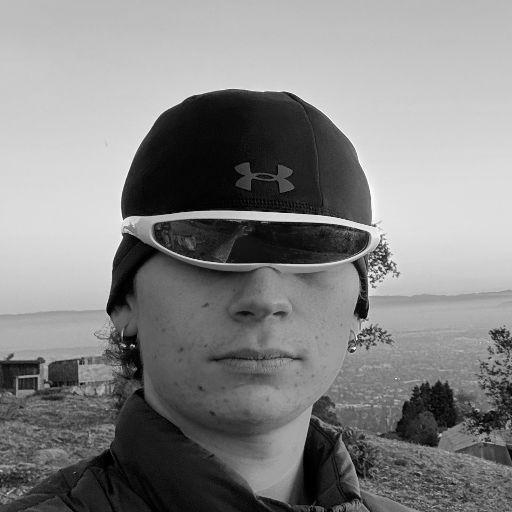
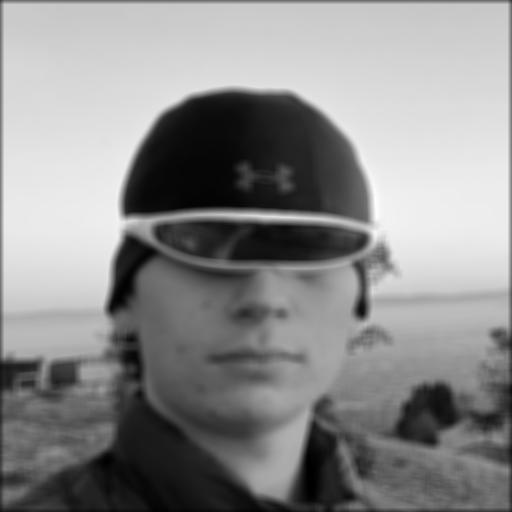
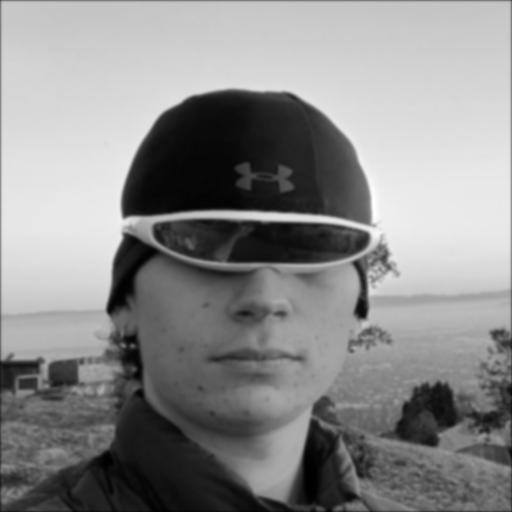
Check out the results of some convolutions computed with the following filters:
- box blur - $9 \times 9$, weighted similarly to the filter in the animation above. it turns out that this filter causes some artifacts (called gibbs ringing) because of the sharp ‘drop’ from $1 / 81$ to $0$ at the edges of the filter.
- gaussian blur - $9 \times 9$, weighted so as to resemble a gaussian. this reduces the ringing artifacts seen with a basic box blur.
- dx - $1 \times 3$, weighted so that horizontal edges are accentuated.
- dy - $3 \times 1$, weighted so that vertical edges are accentuated.
-
original
-
box blur
-
gaussian blur
-
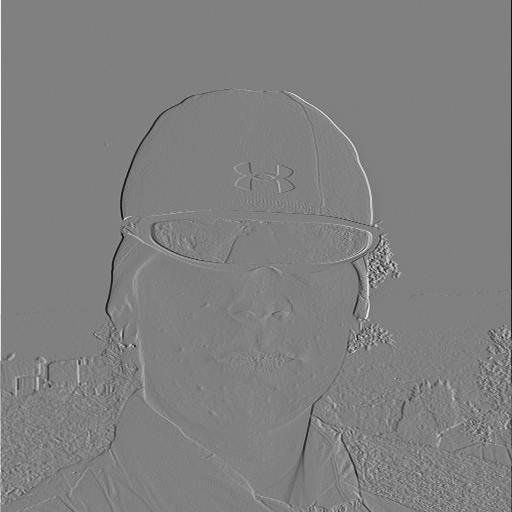
dx
-
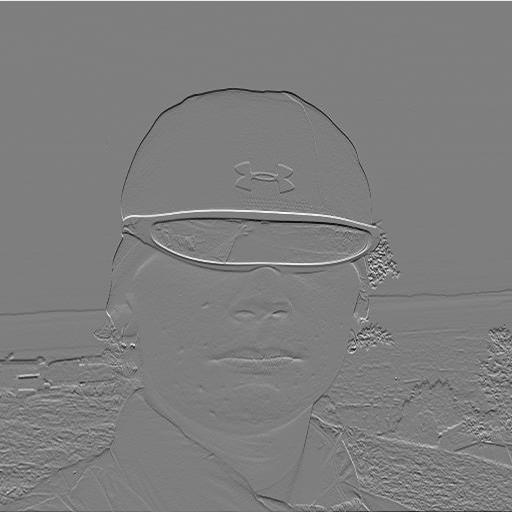
dy
Notice that the dx and dy filters show edges in only one direction; we can emphasize edges in all directions by computing the gradient $\text{dx}^2 + \text{dy}^2$.
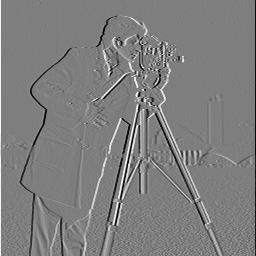
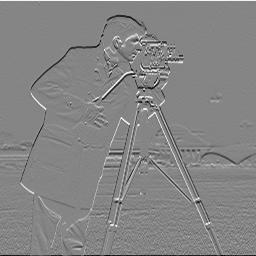
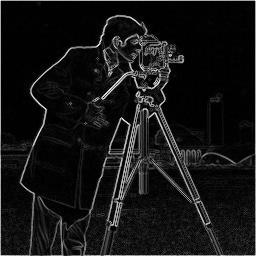
The gradient picks up “edges” in small “noisy” details, which isn’t really what we want with an edge detector. Check out the background and foreground - textured parts of the scene, like grass, show up in the gradient image. We can fix this by thresholding, i.e., setting all image values below a certain value to $0$:
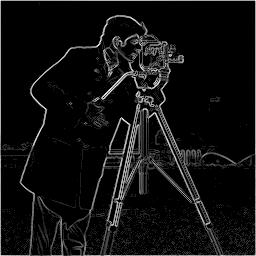
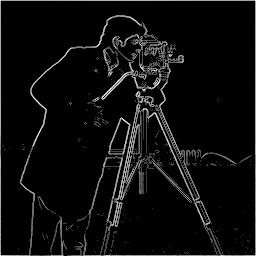
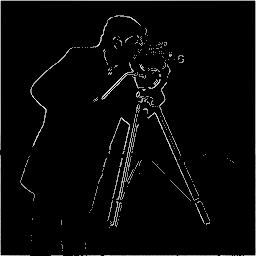
I think the $20\%$ threshold looks best, because it removes most of the noisy details but retains edges. Notice that the $50\%$ threshold is too high, harming the edges’ visual integrity.
Here is another way to remove the “noisy” details, using the fact that a blur averages each pixel with its neighbors, thereby smoothing out rough textures. For example, see the selfies above, where the gaussian blur removed sharp edges between buildings in the background. A clever trick is to incorporate a blur into our edge detector. The animation below explains the strategy.2
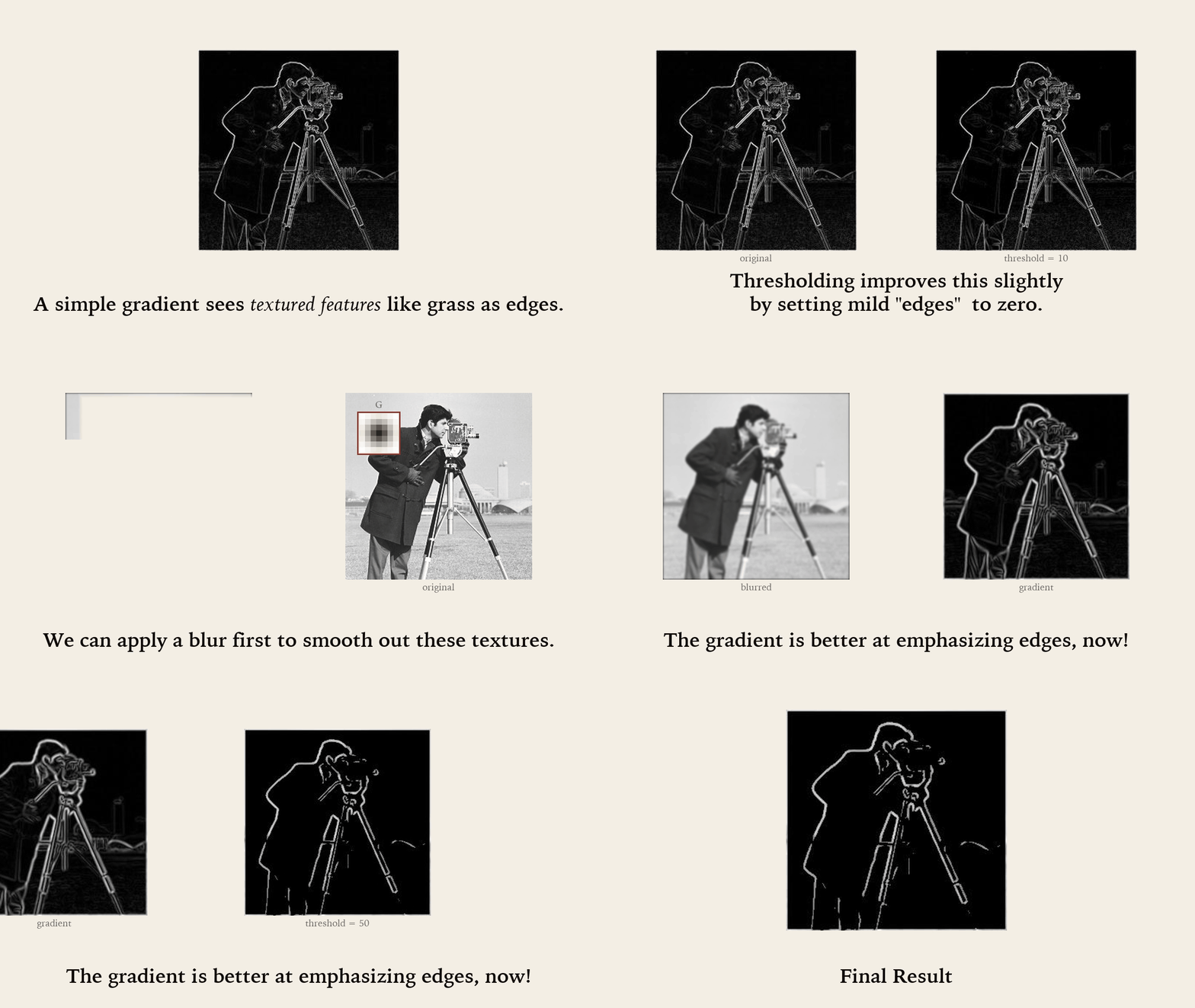
It turns out that convolution is associative. In english, the derivative of a blurred image is equivalent to the blurred derivative of an image. These blurred derivatives are called “derivative of gaussian” (DOG) filters. You compute one by convolving a derivative with a gaussian.


Here are some results of applying a DOG3 and then thresholding:
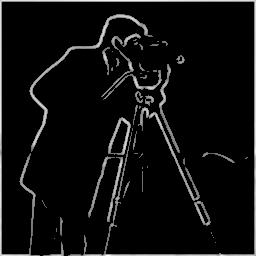
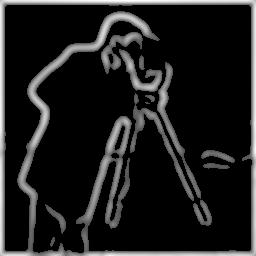
Applying more blur indeed removes more of the “undesired” background edges. However, this also blurs the edges, so I prefer the mild blur because the edges are sharper.
There is actually another strategy for edge detection, called the Laplacian, which basically tells us how much each point differs the local average. You can approximate it with a $2\text{D}$ filter:


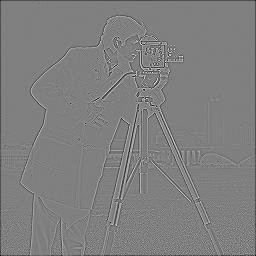
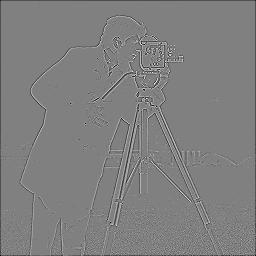
The results aren’t quite as good; the threshold actually removes some edges (see the cameraman’s coat) we’d rather keep before the textured grass. The results aren’t quite as good as the gradient because pixels in “noisy” areas, i.e. grass, tend to be very different from the local average. The Laplacian likes peaks or troughs in pixel brightness, which is not exactly what we want from an edge detector; rather, we want to detect sharp change in one direction.
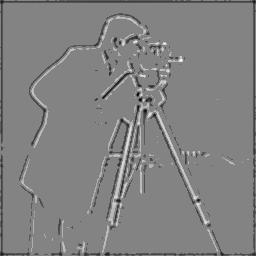
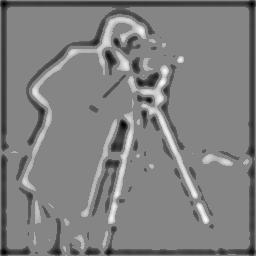
Applying a blur is therefore more important for the laplacian; a blur effectively averages pixels which removes exactly the type of non-edge “noise” we don’t want to see. Check out the results of applying a blurred Laplacian - I coin this filter the “LOG” - and then thresholding.

Fun with Frequencies
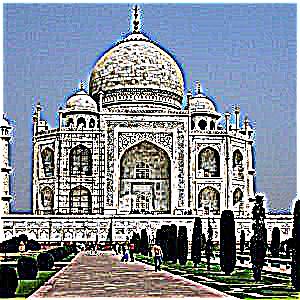
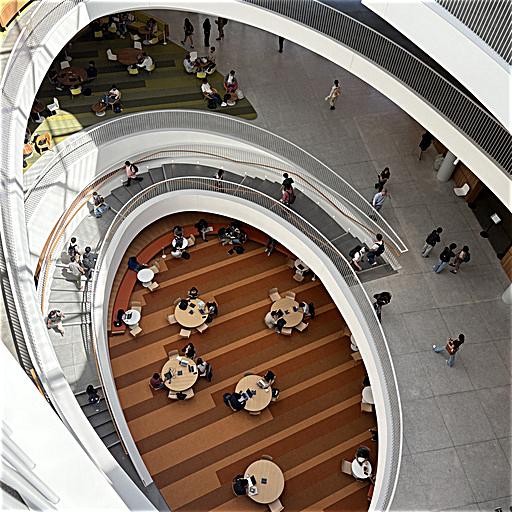
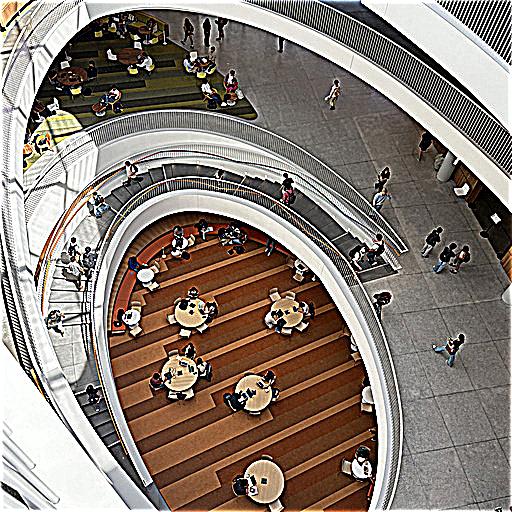
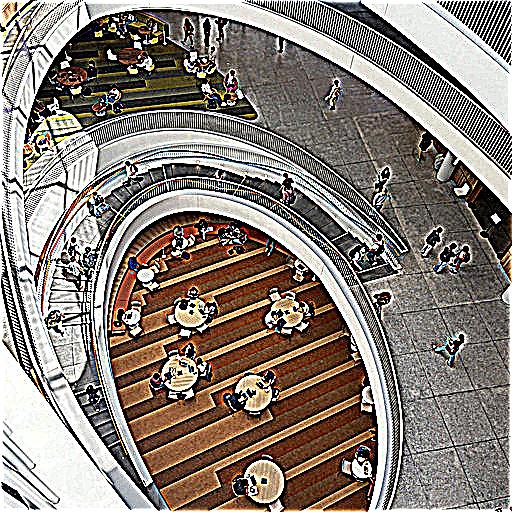
To sharpen an image means to emphasize the edges. How can we do this with filters? Consider the results of applying gaussian filters shown in Part 1. These give a blurry, low-frequency estimate of the original image. Intuitively, subtracting the blurry image from the original will give a high-frequency estimate.
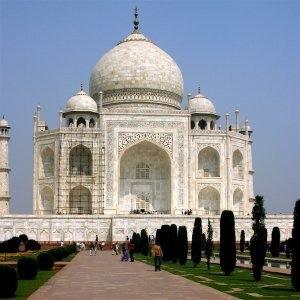
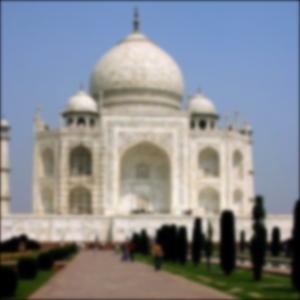
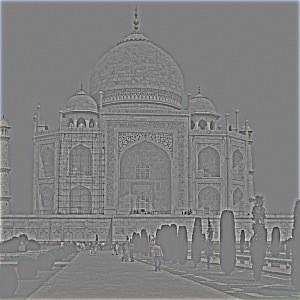
Notice that the high-frequency estimate contains edges. Therefore, we can sharpen by adding the high frequency estimate (scaled, depending on your desired “sharp level”) to the original.
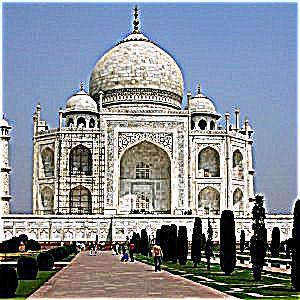
You can also play with the blur level; more blur $\rightarrow$ less frequencies in the low frequency estimate $\rightarrow$ more frequencies in the high frequency estimate that get “boosted” by the sharpening filter.
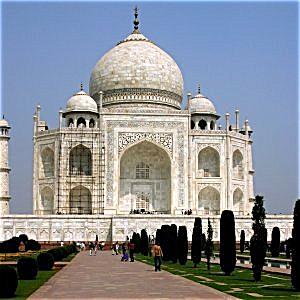
Also, this strategy ultimately does not add new high frequency information, rather it emphasizes the existing high frequency information. Hence, if you try to sharpen a blurred image, the results will not be as good. Confirm this visually by turning on ‘pre-blur.’
Hybrid Images
It turns out that human vision relies on lower spatial frequencies to view far-away objects. I think that this is because the angular resolution of human vision is (roughly) fixed; from far away, the eye can only resolve features with greater separation, compared to the features resolvable from nearby. Hence, we simply cannot resolve the high frequency details that are resolvable up close.
We can take advantage of this to do a cool trick with some high- and low- frequency estimates, obtained in the same way as in the previous section. In particular, we can add the low frequencies from one image ($A$) to another image’s ($B$) high frequencies. From up close, you’ll be able to see the high frequency details and resolve $A$, but from far away you’ll only see the low frequency estimate of $B$.
I implemented high pass and low pass filters as a function of cycles per pixel; then created high- and low- frequency estimates; and then added them together. I also added some gain to the high frequency image, to account for the fact that most energy of natural images is in the low frequencies, and we removed those. After tweaking these parameters4, I got the following results:
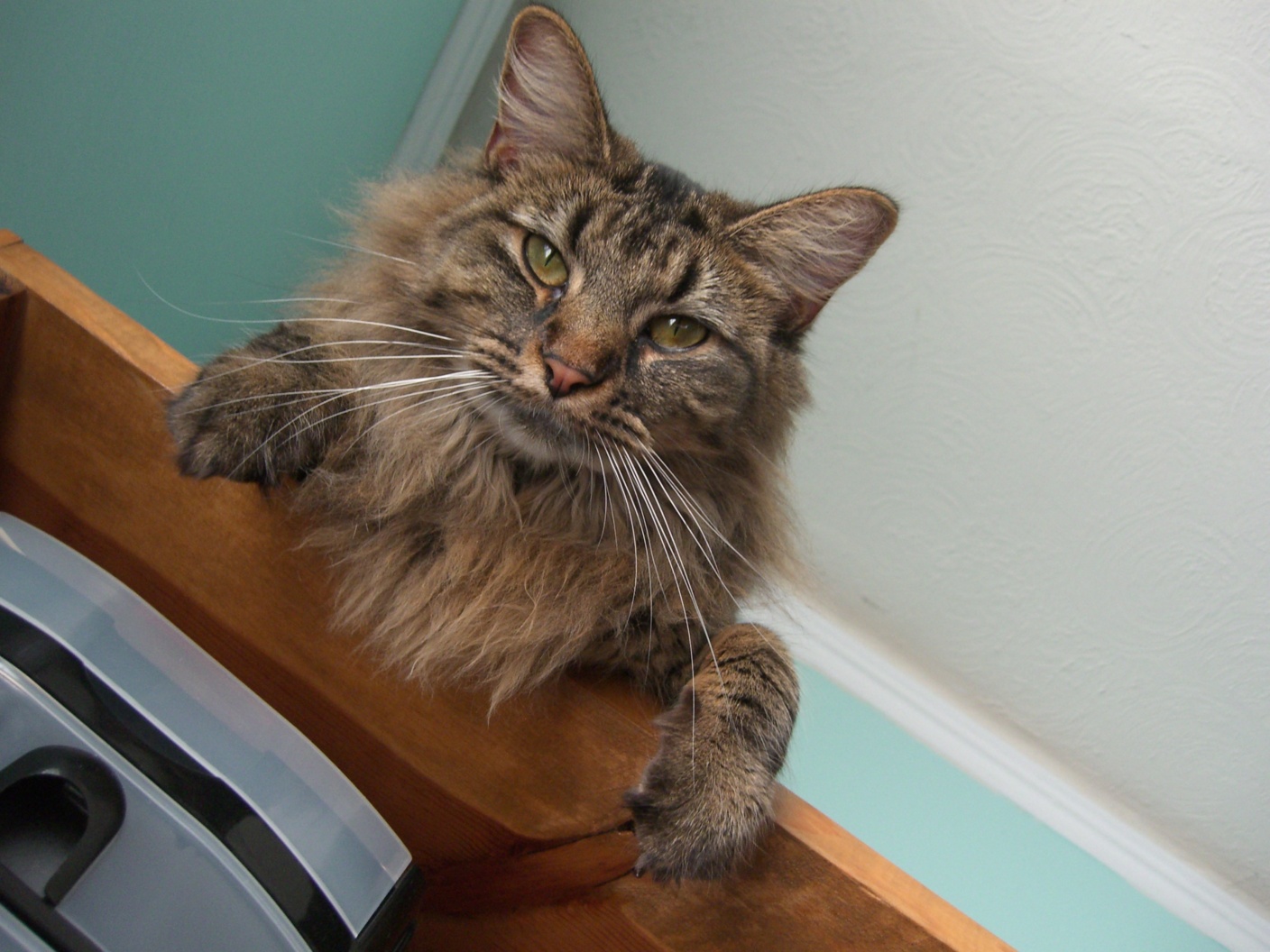
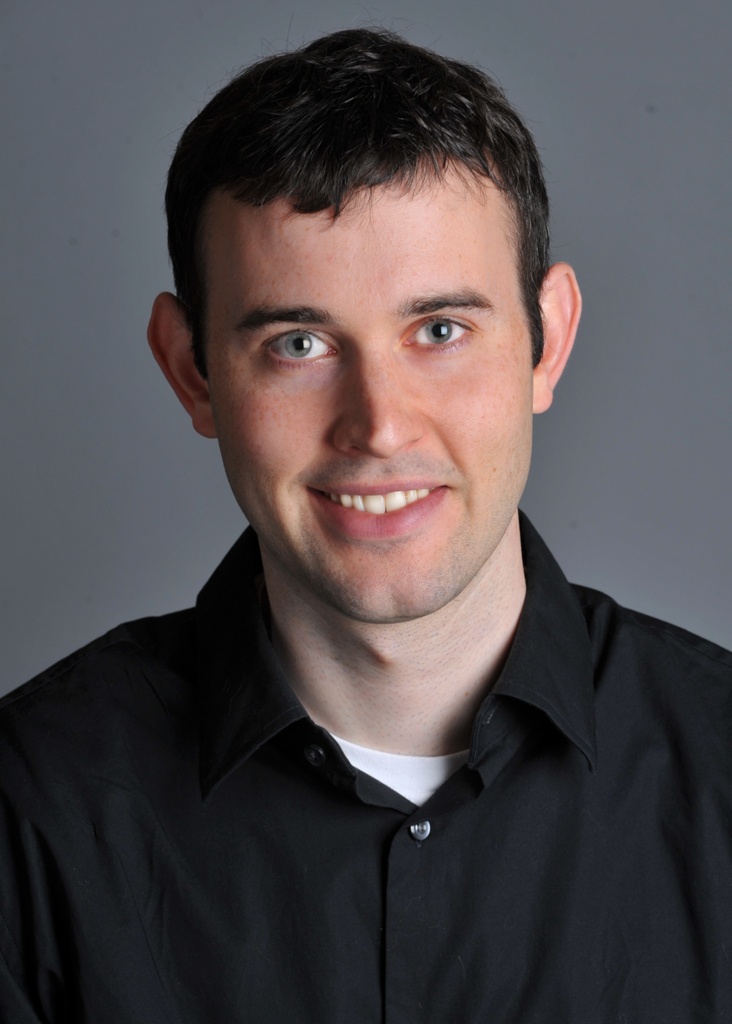
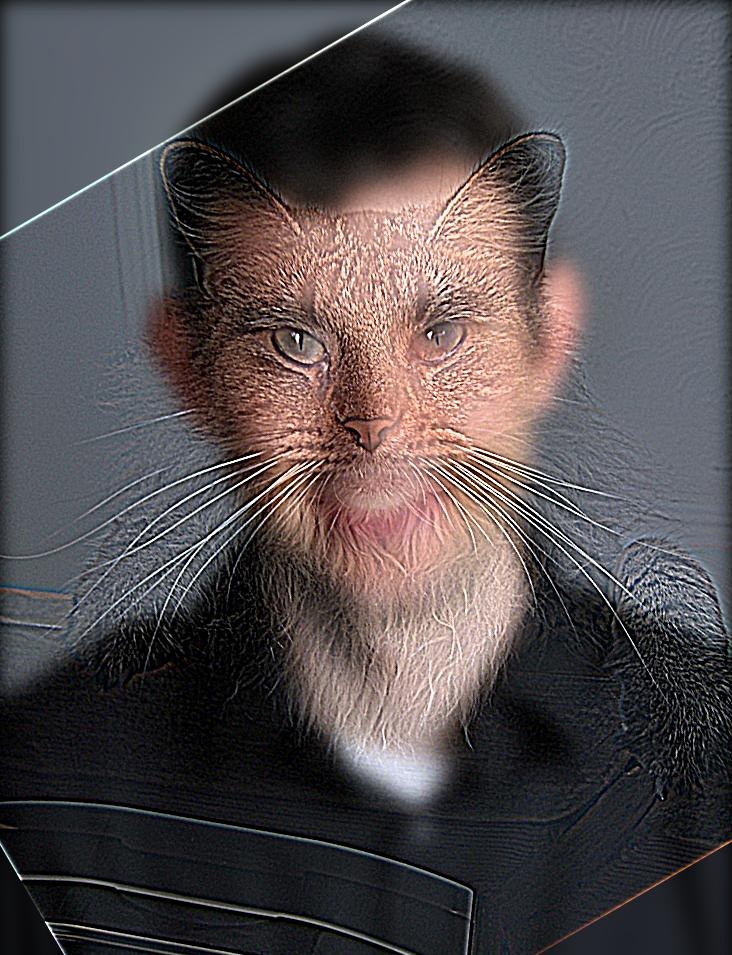
You can see the blurry background image by squinting or by walking a few meters away from the screen. Pressing the ‘out’ button downsamples the source image, which doesn’t really use the frequency sensitivity of your eyes, but it emphasizes the fact that the blurry image lives in the low frequencies.
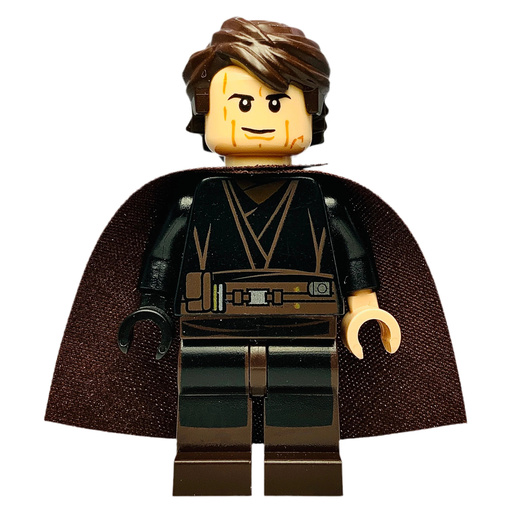
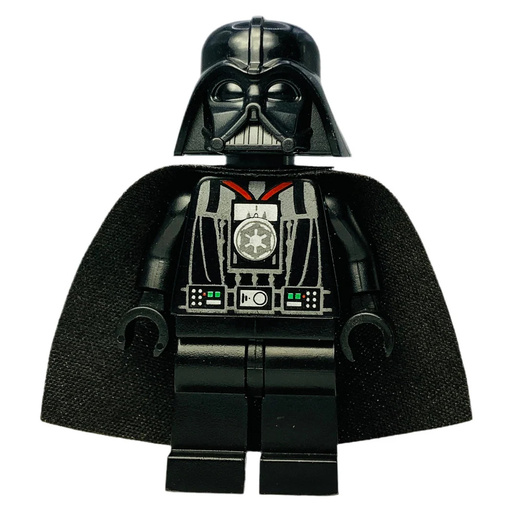
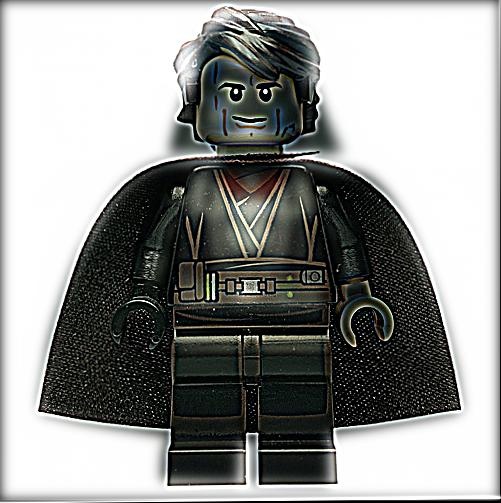
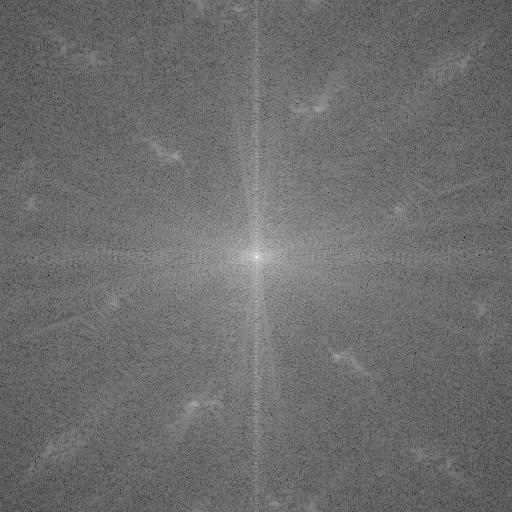
Let’s see what happens in the frequency domain for my favorite image of the three, Anakin. The frequency domain is a representation of an image by the frequencies that make it up. It turns out that convolution in space is equivalent to multiplication in frequency.5
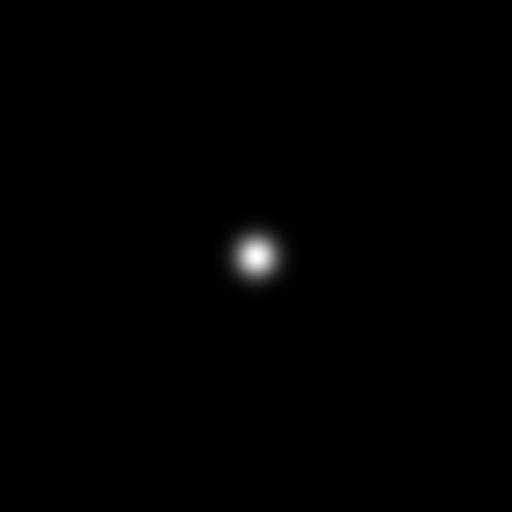
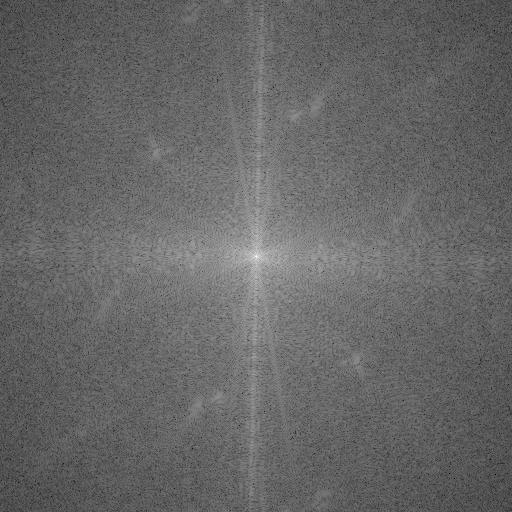
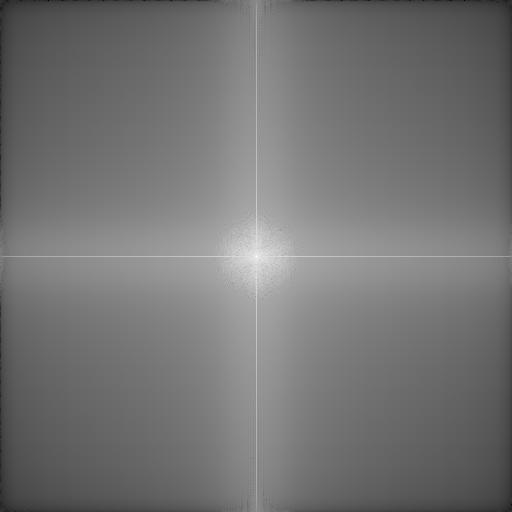
We see that a LPF removed all the little speckles from the outer regions of the frequency domain. The only information (i.e. bright pixels) that survives is near the low frequencies in the center.

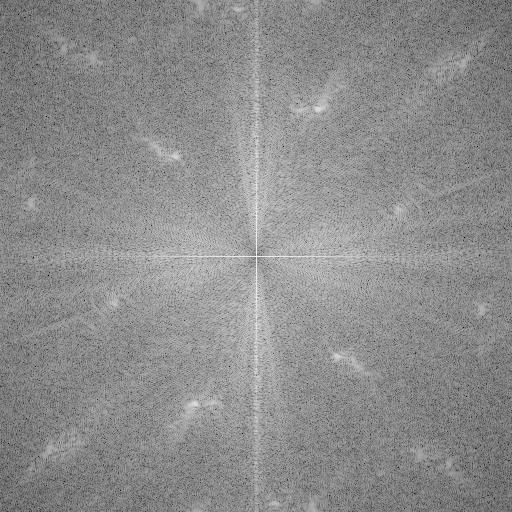
The effect of a HPF is harder to notice because the high frequencies are naturally much lower-energy (less bright) to begin with. If you look closely, the result looks darker in the center, relative to the rest of the frequency domain.
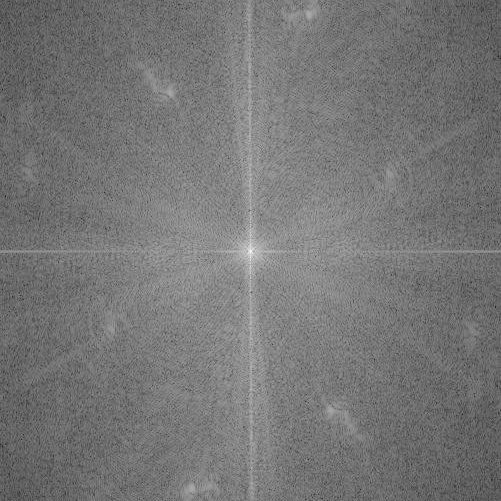
Adding these, we get the following result frequency representation. Notice that it looks much more similar to the frequency representations we started with than either of the high- or low- passed versions did alone.
Blending Images
How can we blend images together? Simply cropping one image onto another won’t look right. The solution is to use Gaussian Stacks and Laplacian Stacks, which allow us to view and modify images at multiple scales.
A Gaussian Stack is a sequence of subsequently lower-detail images, obtained by applying low pass filters with increasingly narrow cutoffs. A Laplacian stack takes the difference between the layers of the Gaussian Stack, yielding band-pass frequency estimates of an image. Intuitively, each layer of the Laplacian Stack contains a different level of detail, and we can recover the original image by recombining these levels.
I think the following animation explains this better than I could with words:
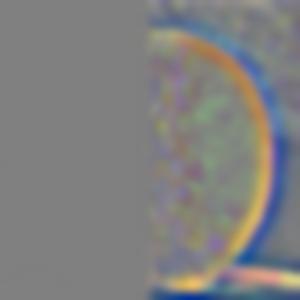
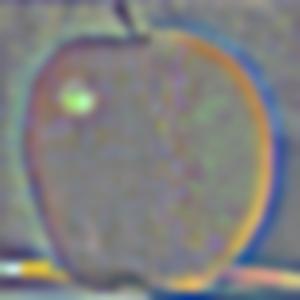
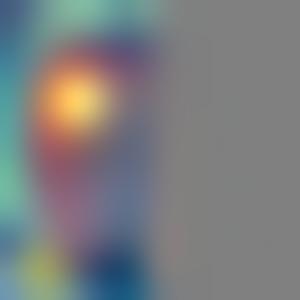
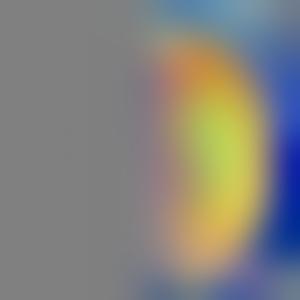
This is exactly what Burt and Adelson used in 1983 to combine images of an apple and an orange. They used such a multi-scale stack to blend gradually the blurry estimate at the lowest level, but more abruptly combine the high detail levels. Why does this work? Well, it smoothly blends the smooth changes, and quickly blends the quick changes! The result looks way nicer than you’d get with any single-scale combination, where you’d have to compromise the gradual changes with an abrupt transition or vice versa.
Check out the sequence of half-images below, and the blended counterpart. Notice that the detail images have a clearly defined boundary, but there a smoother transtion in the low frequency images.
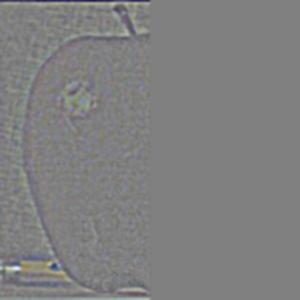
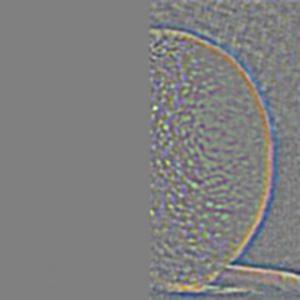
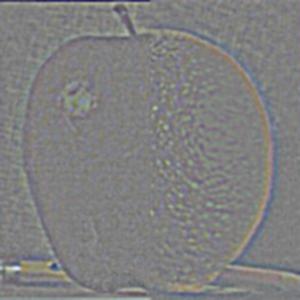
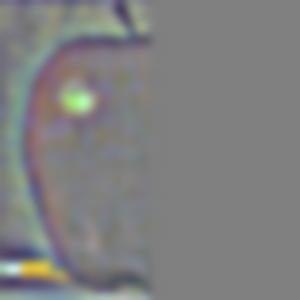
By adding together the blended levels we reconstruct the legendary oraple:
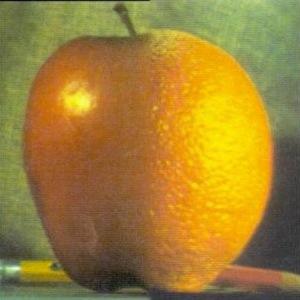
I had some fun blending together images. As cool as the final blended result is, it is more fun in my opinion to compare the blended sub-levels (I picked my favorites for each). The low-frequency images transition smoothly, so there is no abrupt change in brightness, while the high frequency images change abruptly, so that small details don’t overlap in the transition region.
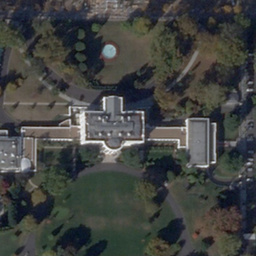
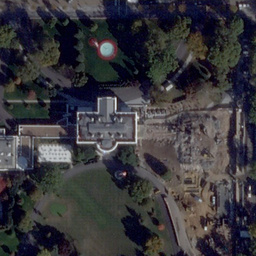
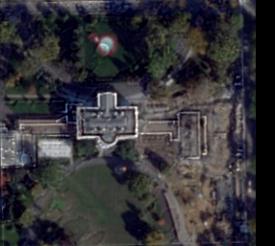
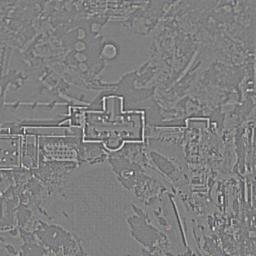
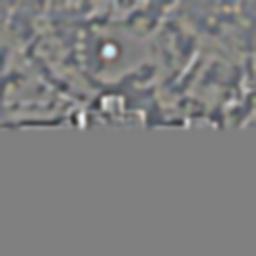
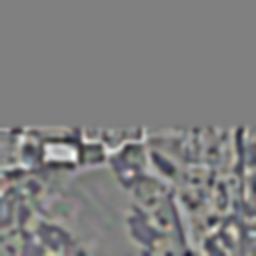
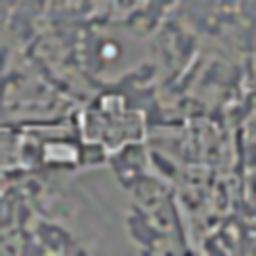
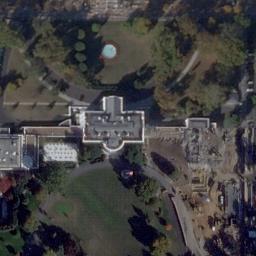
Here is a blended picture of the white house, before and after the beginning of construction on a vital national security enhancement:
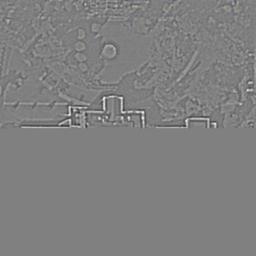
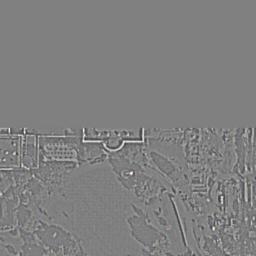
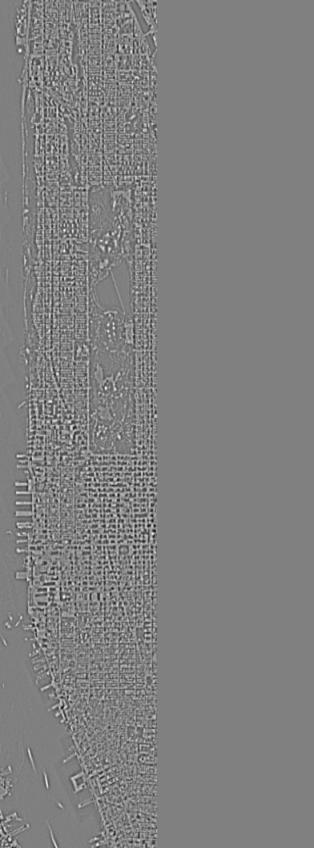
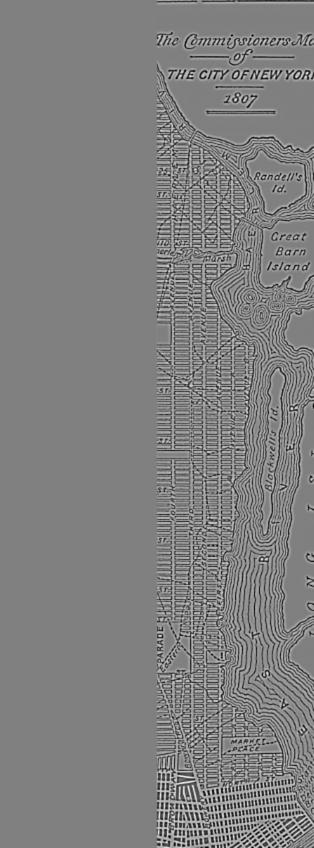
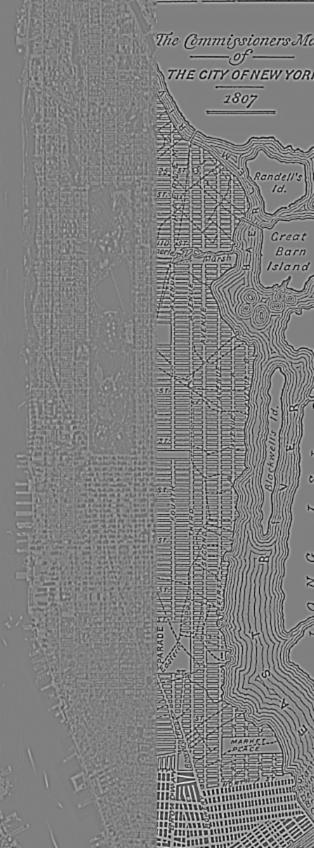
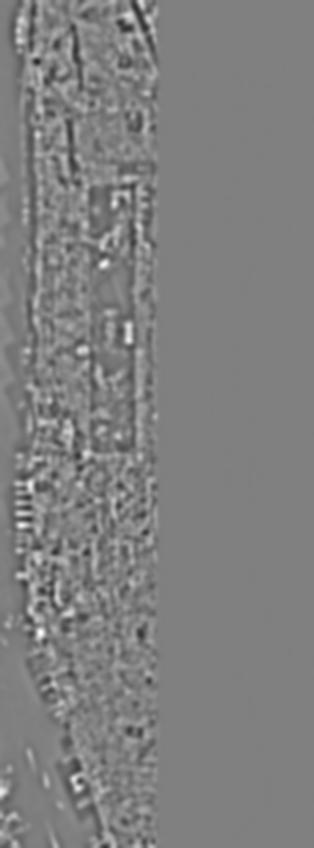
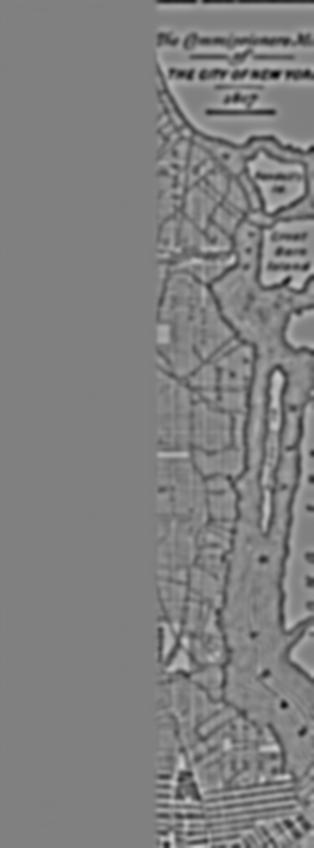
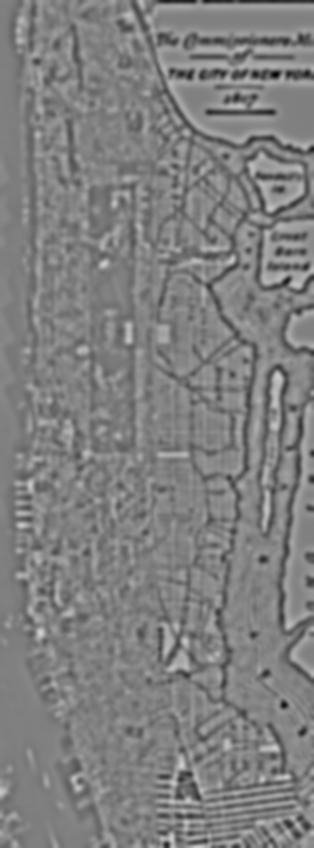
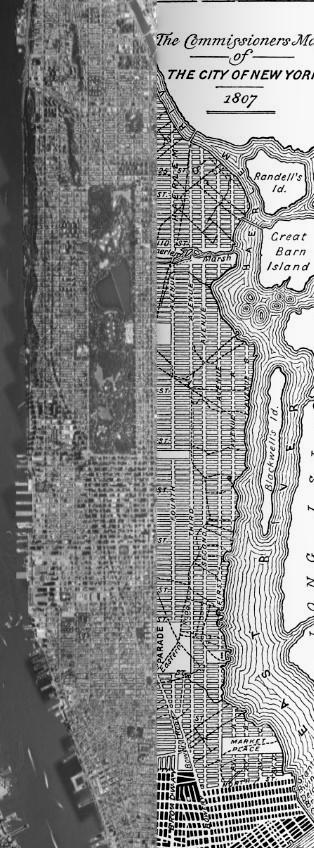
Here is a blended picture of the Commissioner’s Plan of 1811 for Manhattan, and a screenshot I took of Manhattan from apple maps. It’s fascinating that the Manhattan map is 200+ years old!
Finally, we will repeat the exact same process as above with some irregular masks to do a more-interesting image blend. In particular, we will
- compute the laplacian stack of two base images, decomposing them by detail level (i.e. isolating one frequency band at a time)
- compute the gaussian stack of an irregular mask that covers some part of one of the images. like before, this allows us to abruptly change high frequency estimate while smoothly blending the low frequencies.
- apply the appropriate mask to each level of the Laplacian Stack
- add together the results for a cool blended image!
I did all the alignment and mask-creation with my all-time-favorite photo-editing suite: Google Slides.
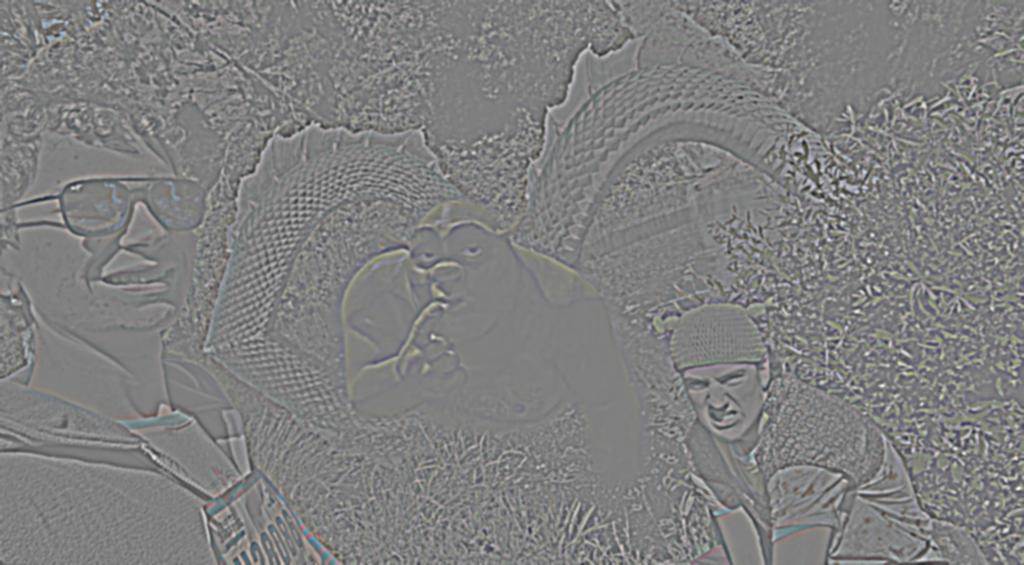
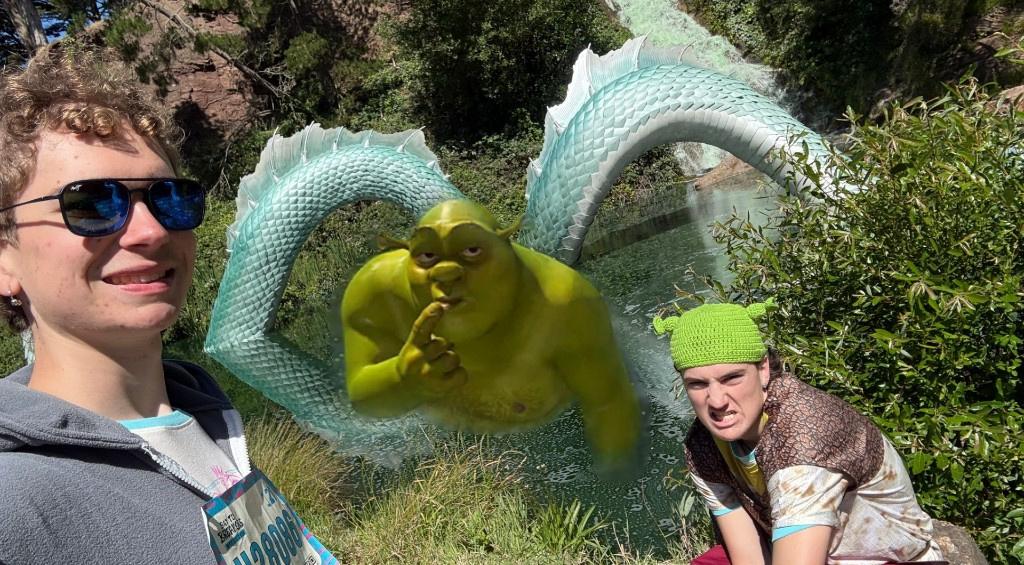
For my first image, I selected this selfie I took of my brother and I; we dressed up as Donkey and Shrek for a race called Bay to Breakers, which happens each May in San Francisco. It felt right to add the real deal to this picture.
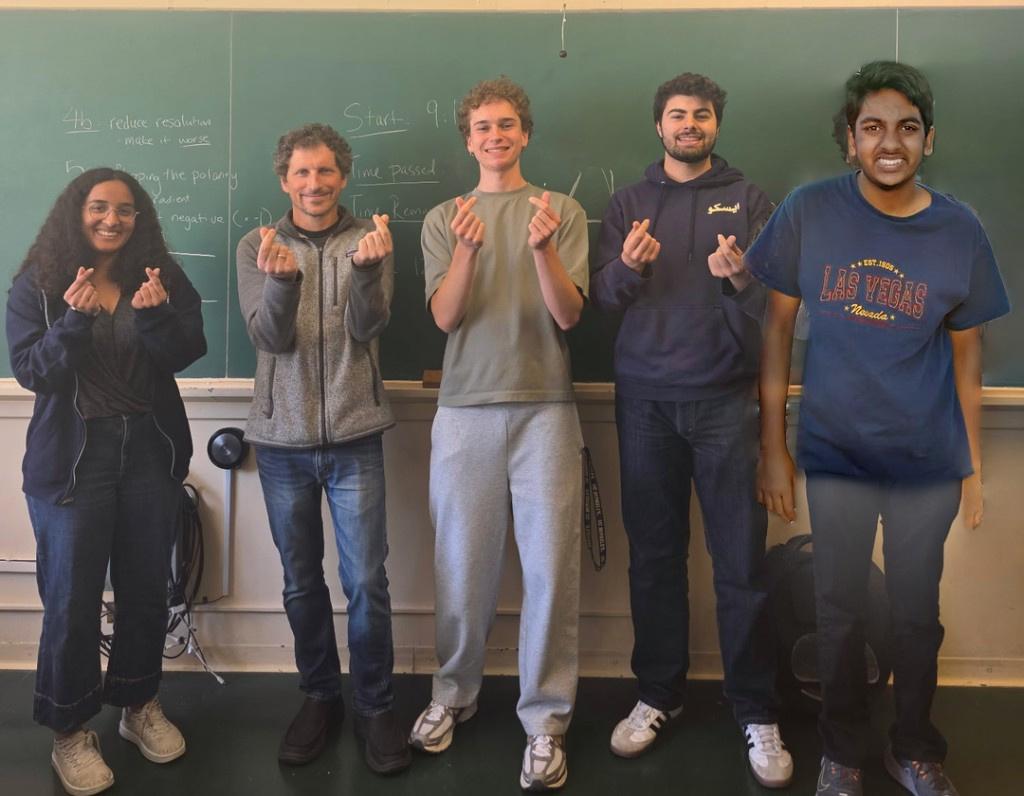
While looking through my camera roll for more good images to blend of a more-personal flavor, I found a group photo taken on the last day of the MRI class of myself, my buddies Arvind and Parsa, and Miki and Rinni (who was the professor and TA respectively). Ever since taking this photo, I’ve really regretted including Arvind on this one.6 The guy is just so damn old! Anyway, with the knowledge gained in this project, I figured I could finally fix this tragedy! My solution: I stalked Arvind’s travel blog, locating a suitable picture of a more spry and youthful Arvind, and replaced the old fart fogging up this otherwise treasured memory of mine.
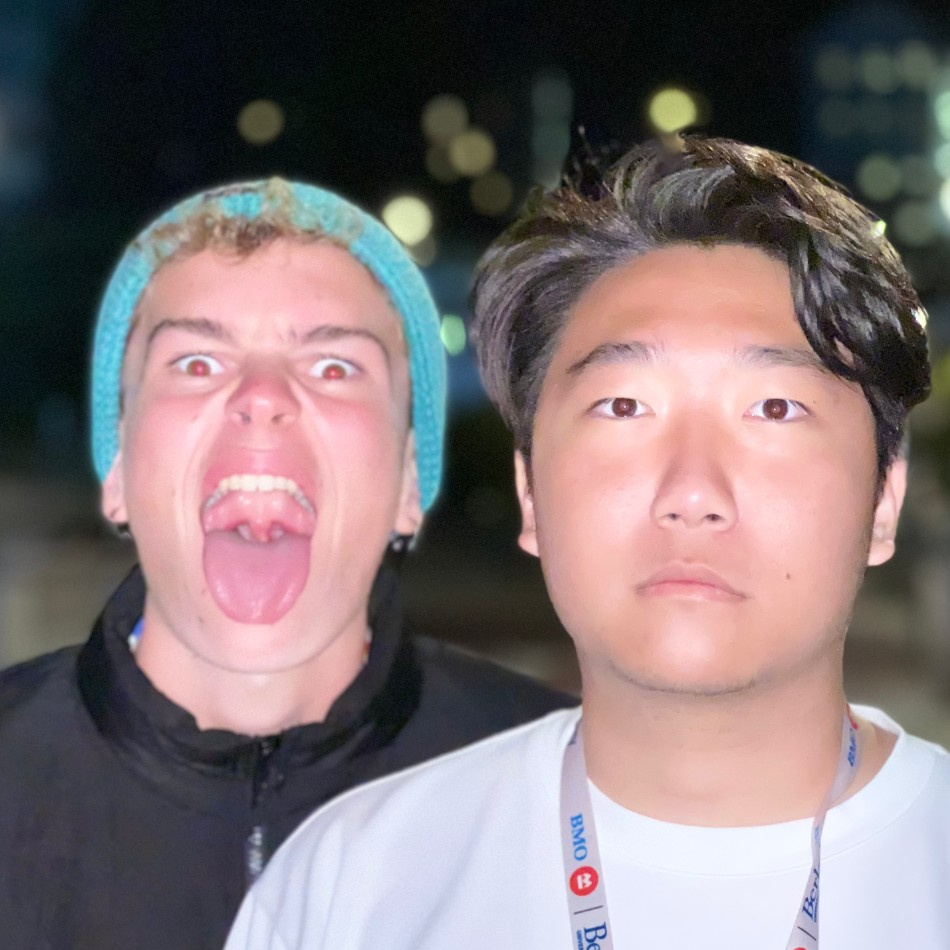
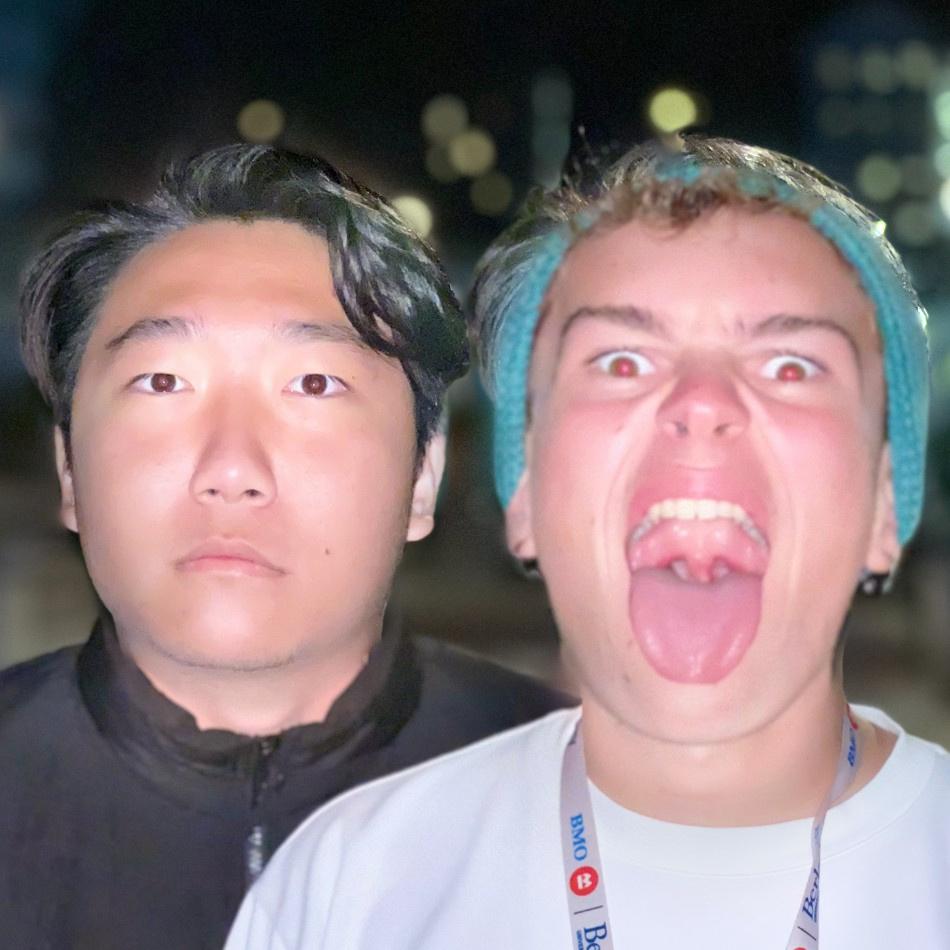
For my final swap, I want you to guess which of these is the original7:
-
The GIF actually uses a $27 \times 27$ filter, chunked into $3 \times 3$ “pixels.” That is, each addition is actually the addition of all 9 copies coming from a $3 \times 3$ chunk. This exaggerates the effect of an analogous $3 \times 3$ box filter, for the sake of visualization. ↩
-
I made the animation with pixel value cutoffs, but later decided it would be more useful to define a threshold based on the percent of the maximum pixel value. ↩
-
Since convolution is also commutative, you’d get the same results regardless of the order in which the blur and the derivative are applied. There are are some tricks you have to play with these discrete and finite support image signals, however, regarding the convolution mode so that they match exactly. ↩
-
HP · LP · GAIN cutoffs of: $0.082$ · $0.017$ · $5.7$ for derek / nutmeg, $0.076$ · $0.027$ · $2.8$ for anakin / vader, and $0.092$ · $0.18$ · $1.2$ for whitehouse. ↩
-
Consider an ideal low-frequency-passing filter. In the space domain, you can apply a blur filter that smooths out the high-frequency details. Equivalently, you could look at the frequency domain, and set all the low frequencies to $0$ but leave the high frequencies alone. Hence you could implement a low-frequency-passing filter by multiplying the frequency representation with some sort of “mask” that is $1$ for frequencies you want to keep, and $0$s elsewhere. While the convolution-multiplication equivalence is complicated to prove, hopefully this example lends it some believability. ↩
-
This is entirely a joke. If Arvind is an apple and I’m an orange, together we make a truly well-blended oraple. ↩
-
Left. Jeffery’s face is way bigger than mine so this one took several attempts; notice that I had to increase the size of mine to fit over his. ↩